Creating Saved Filters
What are Saved Filters?
Saved Filters are a way to keep a copy of a report with all the options and filters pre-configured making it quicker and easier to run common reports.
Saved filters can be created for Standard or Custom Reports.
Creating a Saved Filter:
From the desired report, apply appropriate report options and filters.
- Options: are under the Report Settings tab, where users can change the report format, currency, report title/subtitle, etc.
- Filters: are under the Available Filters tab, where users can select the report parameters, such as account number, break fields, UDIDs, etc.
NOTE: Report options and filters will vary from report to report.
Once the report is configured, click Create at the bottom of the page.
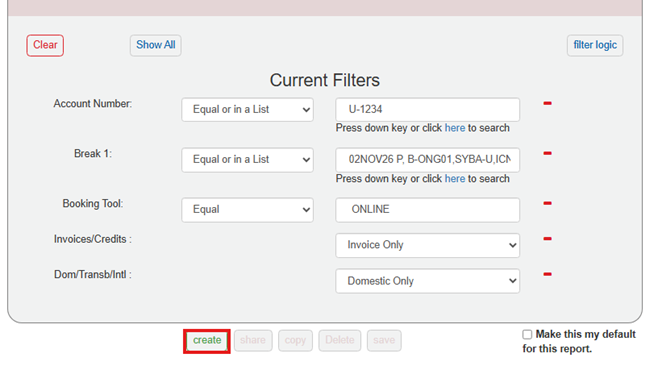
NOTE: Filtering, as the name suggests, only filters the data down to a smaller subset of information. Filtering does not add additional fields to the report.
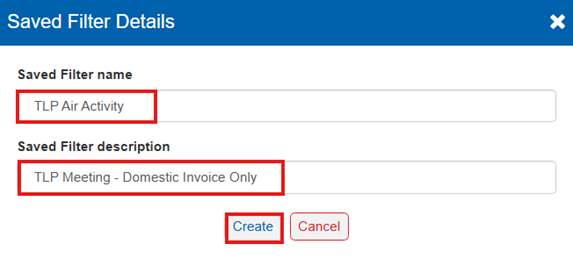
The Saved Filter Details pop-up window will open.
Add a Saved Filter Name (mandatory), and Saved Filter description (optional). Then, click Create once more to complete setup.
TIP: Name the saved filter so that it’s easy to remember what it does.
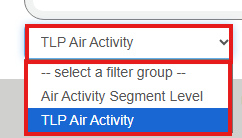
Check the bottom left-hand corner of the page to ensure the report name is saved.

Accessing a Saved Filter:
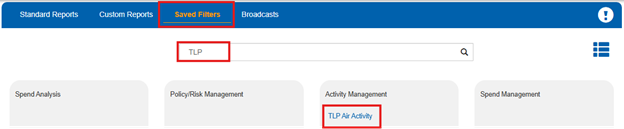
There are 2 ways to access saved filters.
Every report has a – select a filter group – drop-down menu on the bottom left-hand corner of the page. This drop-down will list all saved filters associated with the report.
Additionally, they can be found by using the search bar within the Saved Filters tab.
Was this article helpful?
That’s Great!
Thank you for your feedback
Sorry! We couldn't be helpful
Thank you for your feedback
Feedback sent
We appreciate your effort and will try to fix the article